
25
2009
Boot your USB Drive in VirtualBox
 An article by
The GUI of VirtualBox does not have an option to boot a USB drive (Physical Drive) in a virtual machine.
However you can attach a physical drive to a virtual machine using a command line tool that is bundled with Virtual Box.You can then boot your virtual machine from the attached Physical drive.
This is the continuation of my previous article Test bootable USB drive without restarting your computer.You can read more about bootable usb drives in that article.
In this article I will show you how you can boot a bootable usb drive in Virtual Machine created by VirtualBox.You can easily test bootable USB drives within Windows or Linux and without restarting using this method.
Download and install the latest version Virtual Box and VirtualBox Extension pack from http://www.virtualbox.org/wiki/Downloads
The Extension pack adds support for USB 2.0 devices.
Boot USB Drive in VirtualBox – Windows
Section 9.6 in the VirtualBox manual contains all the details required to attach a physical disk to a virtual machine.Using the vboxmanage.exe tool you can create a tiny vmdk file which points to your real USB drive (Physical Drive/Disk).You can attach this tiny vmdk to your virtual machine.A vmdk file is a virtual hard disk file which can be used with VirtualBox and VMWare.
The vboxmanage.exe tool is bundled with VirtualBox.You don’t have to download it separately
Open Command Prompt as Administrator
Navigate to your Virtual Box installation Directory.
Type the following command and press enter
Syntax of the command
You have to replace path\to\usb.vmdk with the path of your choice
Example
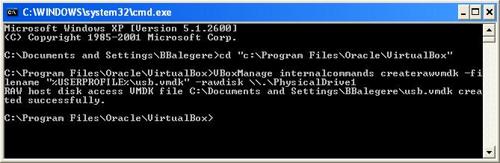
In Windows your 1st Hard Disk will be \\.\PhysicalDrive0.Your 2nd Hard disk will be \\.\PhysicalDrive1.
Warning:Do not Attach your Primary hard disk to your Virtual Machine and Boot it in the Virtual machine
To find the correct number for your USB Drive
Right Click on My Computer-Manage-Disk Management
Here you can find the correct disk number of your USB Drive

You will have to replace \\.\PhysicalDrive1 with the correct drive number.
In this case there was only 1 hard disk and 1 USB disk.So the USB drive is referred by \\.\PhysicalDrive1
Now you should have a tiny vmdk file.You can start your Virtual Machine with this tiny vmdk and boot from it.
- Start VirtualBox.
- Create a new Machine or Select an Existing Machine.
- Click on Settings

- Storage-Add Hard Disk
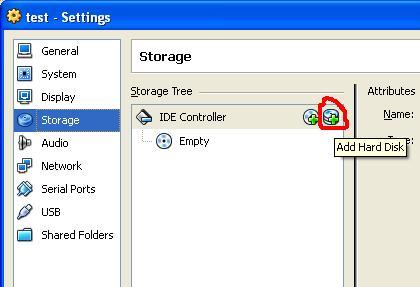
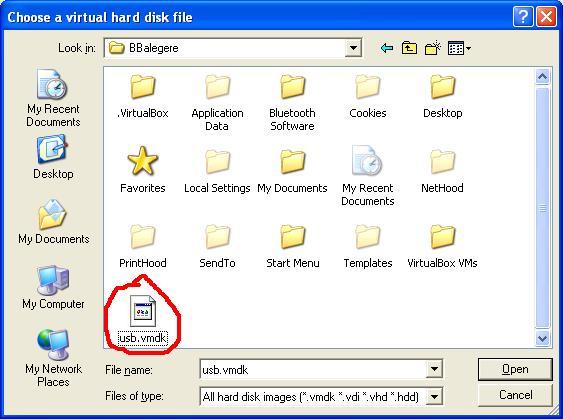
- Select the vmdk file that you had created.

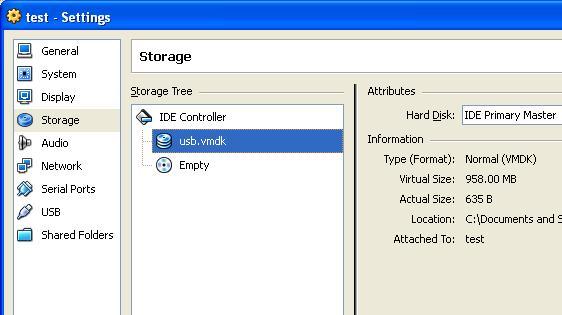
- Make sure that usb.vmdk is your Primary Master.
- System-Boot Order.Set your Hard Disk as the first boot device.
- Now start your Virtual Machine.
Your virtual machine will boot from your bootable physical USB Drive.
Boot USB Drive in VirtualBox – Ubuntu/Linux
In Ubuntu or Linux the procedure is same. You can create the virtual hard disk pointing to your USB Drive using the below command
Replace /dev/sdb1 with the correct device name. You can find the device name your USB Drive by
In this screenshot I have used a bootable Ubuntu USB drive created using Unetbootin.


About the Author: Bharat Balegere
Bharat Balegere is a 27 year old blogger from Bengaluru. He is a technology enthusiast and loves tinkering with computers and usb drives.
THANK U MAN YOU SAVE MY LIFE….
S.O.S
VboxManage.exe : error: Cannot open the raw disk ‘\\.\PysicalDrive1’: VERR_FILE_NOT_FOUND
VBoxManage.exe : error: the raw disk vmdk file was not create
Something Helpme pleaseeeeeeeeee…. SOS
Great Post!
simple and objective.
congratulations.
Thankyou!
It worked!!
Use plop bootmanager its way easier
plop did the job, thanks :)
Tried this using Ubuntu 11.04 host and Virtualbox 4.1
Virtualbox refuses to use the .vmdk file giving an error…
NS_ERROR_FAILURE (0x80004005)
Tried changing permissions, etc.
Any thoughts?
In linux you have to be root if you want to access /dev/sdfX
I wasn’t very clear…
I mean you have to be root to access /dev/sdfX, so virtualbox must be running as root (or sudo) to access your usb drive.
Your vmdk file is like a “pointer” to /dev/sdfX… at least as I undestand it…
This don’t work. Keeps flipping “Invalid parameter” in the image path. llameeeeeee
How to boot from USB in another Computer which have xp installed using virtualbox?
Works on windowsxp. I try install ubuntu 11.10. Thanks
it is a good tutorial. but in both the cases ie to create usb.vmdk and load it as hard disk in new machine, the cmd.exe and virtualbox must be run with administrator rights. this was the mistake i did at first.
DOES NOT WORK!
VB says the file is inaccessible. However, the CLI program claims to have succeeded in creating the USB.vmdk. and i checked. so why say its not accessible??? any answers?
It appears that you need to run virtualbox as admin (sudo) to access raw disks:
http : // luckyviplav.wordpress.com/2010/07/17/windows-7-on-mac-os-x-through-virtual-box/
See the comments by Marcos Vives.
Cheers,
ak.
Superb! Tested and works with VirtualBox 4.1.2 on Win7 x64 as a host. Booting a 32Gb Transcend JF V60 which was made bootable with Diablerie’s Ultimate Suite…
Hi, for me doesn’t work! :(
I give this error:
VBoxManage.exe: error: Cannot open the raw disk ‘\\.\PhysicalDrive1’: VERR_ACCESS_DENIED
VBoxManage.exe: error: The raw disk vmdk file was not created
My usb key is format with fat32 file system… in a problem?
Thankyou
Please run the command with admin privileges.
Right click on Command Prompt and choose Run as Administrator.
Thankyou worked for me once i:
ran cmd prompt as administrator
ran virtualbox as administrator
ticked the “solid state drive” box under storage in VB
and finally unchecked the usb drive filter under “USB” in VB
…although the os is still trying to load…
I forgot to run virtualbox as admin so it wouldn’t load the usb vmdk. many thanks to the comment you made
worked really fine, just had to run CMD as ADMIN but also VirtualBox, and it worked like a charm thanx a lot dude!
After I ran the programs as admin it worked like a charm! Many thanks…
Much of the instruction is almost clear, but just enough unclear to make it confusing and create a situation where steps have to be executed several times. Learn better English.
I am success making usb.vmdk, but i can’t insert usb.vmdk on existing Virtual Machine.
i found message error :
Failed to open the hard disk D:\New MyData\VBOX\USB\usbFreenas.vmdk.
The medium ‘D:\New MyData\VBOX\USB\usbFreenas.vmdk’ can’t be used as the requested device type.
Result Code: E_FAIL (0x80004005)
Component: Medium
Interface: IMedium {53f9cc0c-e0fd-40a5-a404-a7a5272082cd}
Callee: IVirtualBox {c28be65f-1a8f-43b4-81f1-eb60cb516e66}
can you help me ???
thank you before
Run VirtualBox as administrator. If it install something after the run then wait and when it finish the installation close VirtualBox and run it as administrator again.
I had the same issue using Windows 7 x64 & I am trying to install Windows 8 x64 RTM.
Issue resolved.
Plop is ok but this is much easier and once it’s done you can reuse it anytime as long as you plug any bootable USB into the same USB port. I D\L the latest VBOX for windows and works on my 64bit Win7 on an AMD quad core as well as my 32bit AMD dualcore Laptop.
Thanks heaps re-booting my laptop for testing grub and syslinux scheme’s was getting old and hadn’t found QEMU this is even better Kudos Mate !!
Work’s fine :D thanks
example for you
my disk named “disk2”
add new folder USB
run cmd in admin mode
VBoxManage internalcommands createrawvmdk -filename “\usb\usb.vmdk” -rawdisk \\.\PhysicalDrive2
run virtualbox in admin mode
and do what he said, mount it in VB all works, you shouldn’t get any error in mount if you run in admin mode.
Windows 7 Pro V6.1 (Build 7601: Service Pack 1)
VirtualBox 4.2.4 r81684
Following instructions explicitly. Running CMD as Administrator:
Microsoft Windows [Version 6.1.7601]
Copyright (c) 2009 Microsoft Corporation. All rights reserved.
C:\Windows\system32>cd “c:\Program Files\Oracle\VirtualBox”
c:\Program Files\Oracle\VirtualBox>VBoxManage internalcommands createrawvmdk -fi
lename “%USERPROFILE%\usb.vmdk” -rawdisk \\.\PhysicalDrive1
VBoxManage.exe: error: Failed to create the VirtualBox object!
VBoxManage.exe: error: Code CO_E_SERVER_EXEC_FAILURE (0x80080005) – Server execu
tion failed (extended info not available)
VBoxManage.exe: error: Most likely, the VirtualBox COM server is not running or
failed to start.
c:\Program Files\Oracle\VirtualBox>
I got same error – then it worked. Try closing virtualbox before running the commands.
have exactly the same problem
C:\Program Files\Oracle\VirtualBox>VBoxManage internalcommands createrawvmdk -fi
lename output_usb.vmdk -rawdisk \.\PhysicalDrive4
VBoxManage.exe: error: Failed to create the VirtualBox object!
VBoxManage.exe: error: Code CO_E_SERVER_EXEC_FAILURE (0x80080005) – Server execu
tion failed (extended info not available)
VBoxManage.exe: error: Most likely, the VirtualBox COM server is not running or
failed to start.
For those receiving the error
VBoxManage.exe: error: Most likely, the VirtualBox COM server is not running or failed to start.
Try putting this into your path
set VBOX_USER_HOME=path\to\portablevbox\data\.VirtualBox
Worked for me.
Also I had to run the command prompt as administrator as well as load VB as administrator.
Works fine. XBMCBuntu.
Thanks for the post!
gracias loco funciona de 10
Deer GOD WTF !!! Do you reinvent the wheel every day to drive and maybe Cut your toe Nails WITH A Blow Torch to?
Step 1 Download and install Virtual Box and VirtualBox 4.0.2 Oracle VM VirtualBox Extension Pack from http://www.virtualbox.org/wiki/Downloads
Step 2 plpbt-5.0.14.zip download http://www.plop.at/en/bootmanager/download.html extract
mount the plpbt.iso in Virtual Box
Done
No need to hurt your self any more!!!
Thanks. Works great on win 7 pro and VB 4.2.6
hey! i’m thinking this could also work for a second windows installed on a different hard drive or I can attach a hard drive of a different computer using an enclosure. Is it possible?
Worked 100% for me.
Win 7 Pro x32 VB 4.2.12
Very good method, thank you very much.
Only one problem: any changes made to the USB drive in the virtual machine are not visible in the host OS until I remove it and reattach it.
I tried a tool called sync.exe, who flushes the Windows RAM buffer, no change.
I tried also to change usb.vmdk to writethrough, still no change.
Is there any good setting for this, or even a tool/command (preferably fast too), perhaps even one that can be used in a batch file…?
Please help me…
Thank you.
Regards, DavidB
Sorry, I forgot to mention that I’m using Windows XP SP3 x86 and I’m using VirtualBox as admin.
Well, I found a solution: using mountvol command to dismount USB drive’s volume(s) before starting the VM and to mount them again after closing the VM.
All can be done in a batch file so it will be very easy to use…
Works.
Note step 7: change usb as primary master. Even if this means changing existing disks to secundary master.
There is a tool who does that automatically. It’s called “Virtual machine starter”. Works with Qemu and VirtualBox. More: it’s able to automatically dismount the volumes from the USB drive before the VM starts and to remount them back after it’s closed. This way it can prevent any data loss on the USB drive (from been accessed simultaneously by 2 computers) and you can see any modification made inside the VM (to the USB drive) into the real computer right after the VM is closed.
Where you can find it: go to reboot pro → Boot methods & tools → Boot from USB / Boot anywhere → Booting VirtualBox with USB workaround (last page of the thread).
Good material. Worked exactly the way depicted. Thanks
FATAL: Could not read from the boot medium! System halted.
This is what I get every time with both USB flash drives I own. I followed the procedure to the letter and USB drives boot the real computers just fine. There is no error in usb.vdmk file that I can see, the drive is recognized fine. VBox 4.2.16 (latest) and every single one before it.
To avoid the mentioned error, disable USB device in virtual machine settings.
Not worked on 1st try, but I run CMD as administrator it works perfectly..
Thanks ADMIN
Worked perfectly, thanks a lot.
Worked great with a Windows 8.1 host and Virtual Box 4.3.10. USB stick with ESXi installed on it.
I had an issue at first like Daniel and had to run cmd in administrative mode and also open Virtual Box in admin mode.
This is awesome as I can now test some of my random boot drives around here.
Awesome! Thanks for this! You saved me the hassle of swapping out a hard drive just to get an iso I forgot to copy from it!
windows 8.1, i have this error please help me VERR_INVALID_NAME
Thank you very much !
Works like a charm.
Failed to open the disk image file C:\Users\Mahesh\usb.vmdk.
Permission problem accessing the file for the medium ‘C:\Users\Mahesh\usb.vmdk’ (VERR_ACCESS_DENIED).
Result Code: VBOX_E_FILE_ERROR (0x80BB0004)
Component: MediumWrap
Interface: IMedium {4afe423b-43e0-e9d0-82e8-ceb307940dda}
Callee: IVirtualBox {0169423f-46b4-cde9-91af-1e9d5b6cd945}
Callee RC: VBOX_E_OBJECT_NOT_FOUND (0x80BB0001)
Tell it to run the VirtualBox as Administrator when you first open it.
I like how his tutorial has screenshots from the windows clasic theme, then windows 7 and then windows xp. Windows xp is obviously the best
help, when I want to add the harddisk it launch me this error:
Fallo al abrir el archivo de imagen de disco C:\Users\PC\usb.vmdk.
Permission problem accessing the file for the medium ‘C:\Users\PC\usb.vmdk’ (VERR_ACCESS_DENIED).
Código Resultado: VBOX_E_FILE_ERROR (0x80BB0004)
Componente: MediumWrap
Interfaz: IMedium {4afe423b-43e0-e9d0-82e8-ceb307940dda}
Receptor: IVirtualBox {0169423f-46b4-cde9-91af-1e9d5b6cd945}
Receptor RC: VBOX_E_OBJECT_NOT_FOUND (0x80BB0001)
Microsoft Windows [Version 10.0.17134.285]
(c) 2018 Microsoft Corporation. All rights reserved.
C:\WINDOWS\system32>cd “D:\programs\VirtualBox”
C:\WINDOWS\system32>VBoxManage internalcommands createrawvmdk -filename path\to\usb.vmdk -rawdisk \\.\PhysicalDrive1
‘VBoxManage’ is not recognized as an internal or external command,
operable program or batch file.