
25
2009
Boot your USB Drive in VirtualBox
 An article by
The GUI of VirtualBox does not have an option to boot a USB drive (Physical Drive) in a virtual machine.
However you can attach a physical drive to a virtual machine using a command line tool that is bundled with Virtual Box.You can then boot your virtual machine from the attached Physical drive.
This is the continuation of my previous article Test bootable USB drive without restarting your computer.You can read more about bootable usb drives in that article.
In this article I will show you how you can boot a bootable usb drive in Virtual Machine created by VirtualBox.You can easily test bootable USB drives within Windows or Linux and without restarting using this method.
Download and install the latest version Virtual Box and VirtualBox Extension pack from http://www.virtualbox.org/wiki/Downloads
The Extension pack adds support for USB 2.0 devices.
Boot USB Drive in VirtualBox – Windows
Section 9.6 in the VirtualBox manual contains all the details required to attach a physical disk to a virtual machine.Using the vboxmanage.exe tool you can create a tiny vmdk file which points to your real USB drive (Physical Drive/Disk).You can attach this tiny vmdk to your virtual machine.A vmdk file is a virtual hard disk file which can be used with VirtualBox and VMWare.
The vboxmanage.exe tool is bundled with VirtualBox.You don’t have to download it separately
Open Command Prompt as Administrator
Navigate to your Virtual Box installation Directory.
Type the following command and press enter
Syntax of the command
You have to replace path\to\usb.vmdk with the path of your choice
Example
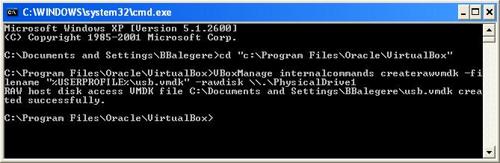
In Windows your 1st Hard Disk will be \\.\PhysicalDrive0.Your 2nd Hard disk will be \\.\PhysicalDrive1.
Warning:Do not Attach your Primary hard disk to your Virtual Machine and Boot it in the Virtual machine
To find the correct number for your USB Drive
Right Click on My Computer-Manage-Disk Management
Here you can find the correct disk number of your USB Drive

You will have to replace \\.\PhysicalDrive1 with the correct drive number.
In this case there was only 1 hard disk and 1 USB disk.So the USB drive is referred by \\.\PhysicalDrive1
Now you should have a tiny vmdk file.You can start your Virtual Machine with this tiny vmdk and boot from it.
- Start VirtualBox.
- Create a new Machine or Select an Existing Machine.
- Click on Settings

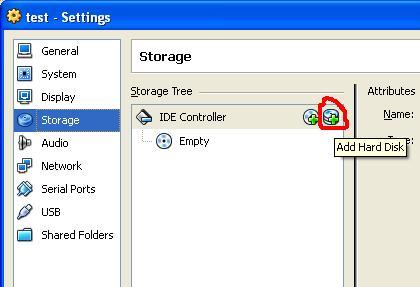
- Storage-Add Hard Disk
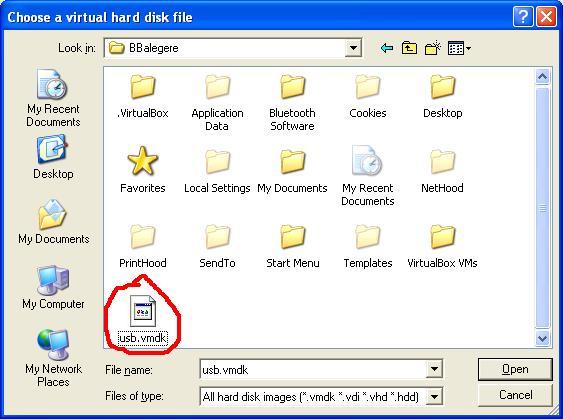
- Select the vmdk file that you had created.

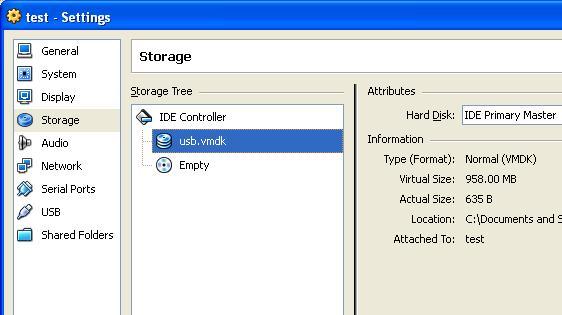
- Make sure that usb.vmdk is your Primary Master.
- System-Boot Order.Set your Hard Disk as the first boot device.
- Now start your Virtual Machine.
Your virtual machine will boot from your bootable physical USB Drive.
Boot USB Drive in VirtualBox – Ubuntu/Linux
In Ubuntu or Linux the procedure is same. You can create the virtual hard disk pointing to your USB Drive using the below command
Replace /dev/sdb1 with the correct device name. You can find the device name your USB Drive by
In this screenshot I have used a bootable Ubuntu USB drive created using Unetbootin.


About the Author: Bharat Balegere
Bharat Balegere is a 27 year old blogger from Bengaluru. He is a technology enthusiast and loves tinkering with computers and usb drives.
Thanks. You resolve my problem. ^^
thanks a lot.
notice:
running windows 7 (i also guess windows vista) with UAC turned on you have to run cmd and virtualbox as an administrator to get access to the usb drive!
Very nice description ,i am going to try .
Gracias, has resuelto mi problema. A seguir experimentando
Excelent!!! your guide is EXCELENT!
Thanks Uridium.
I am glad that you liked my article.
Thnaks, that helps a lot… maybe not to fix my issue, but a damn nice way to troubleshoot!
;o)
Thanks Ionreflex.
I am glad that you liked my article.
Thnaks, but this is only for windows? In ubuntu how to use USB Driver boot as VirtualBox ???
I guess createrawvmdk command can be launched on Ubuntu too. You need to adapt this tutorial.
sudo VBoxManage internalcommands createrawvmdk -filename /home/cas/VMWareWorkstation55/USBSTART/usb.vmdk -rawdisk /dev/sdh
this command works and creates a fully valid vmdk-file, but i cannot appand to my VM.
The medium ‘/home/cas/VMWareWorkstation55/USBSTART/usb.vmdk’ can’t be used as the requested device typ
Fehlercode:
NS_ERROR_FAILURE (0x80004005)
Komponente:
Medium
Interface:
IMedium {9edda847-1279-4b0a-9af7-9d66251ccc18}
Callee:
IVirtualBox {d2de270c-1d4b-4c9e-843f-bbb9b47269ff}
Ubuntu 10.10
I have external bootable usb-hdd with ms-dos installed (+some utilities) and Windows XP as host OS.
Attaching and booting usb-hdd in VirtualBox works fine, but any changes made on this disk in guest OS (ms-dos) are not actually saved on disk i.e. i did not see any changes when explore usb-hdd in my host OS (Windows).
For example, i successfully create some file in guest ms-dos, it is shown in file system (via ‘dir’ command). But when i close my virtual pc and explore this usb-hdd in my host OS, this file does not exist!
What is the problem?
ps: excuse me for my bad english )
I haven’t tried it, but perhaps you should set the drive to Writethrough instead of Normal (the default).
Either change it in VirtualBox.xml or use `VboxManage.exe modifyhd ` (see the user manual for more information).
I have this problem as well.
I am running a live usb version of ubuntu (9.10) from my usb, through virtualbox, using these instructions. I have persistence set up on the usb and it works fine when used normally.
But when loaded on the virtualbox none of the changes I make stay.
I have tried Yoni’s tip of changing the drive to Writethrough in stead of Normal in VirtualBox.xml, but still have the same problem.
Has anyone got this working, with changes to files on the live usb stick persisting?
Thanks.
Thanks genious!
Now that I can boot from the USB key (created by Symantec Ghost for Broadcom NICs), the next problem to solve is joining the network interfaces between the physical and virtual. Or may be more simpler get the drivers that VirtualBox is simulating.
I’m doing this for documentation with screenshots.
Thanks but your command generates this error while creating vmdk
Syntax error: Invalid parameter ‘and’
Which version of Virtual Box are you using and which Operating system?
Are you sure you have entered the commands correctly?
Can you post the exact command you tried?
Looks like you are running windows xp.So your Path contain Documents and Settings.Since it contains spaces it must be enclosed in inverted commas.
thanks a lot, a very helpful article
Its working!
Wow.
I’m making a bootable usb-stick with several programs/minixp/bootcd etc. And now i dont have to switch constantly.
Many thanks for the tut
Great!
Very clear explanations and works perfectly.
Thaks a lot.
Works great, thanks!
BTW, for those who are paranoid like me, there’s a simple way to mount the physical device as read-only.
In the .vmdk file, under “Extent description”, change RW to RDONLY.
If you take this cmd :
VBoxManage internalcommands createrawvmdk -filename D:\Documents and Settings\y\.VirtualBox\VDI\usb.vmdk -rawdisk \\.\PhysicalDrive2 -register
You will get [Syntax error: Invalid parameter ‘and’]
Take this cmd :
VBoxManage internalcommands createrawvmdk -filename “D:\Documents and Settings\y\.VirtualBox\VDI\usb.vmdk” -rawdisk \\.\PhysicalDrive2 -register
Its works great!
Thanks.
I will update my post
Thank you Bharat for taking the time to post these excellent instructions :-))
Thanks for the tips. Your article actually reminded me that USB drives are reported as “PhysicalDriveN” as well.
Аллилуйя!!! :) Используя данный способ, прекрасно загружаюсь с USB-HDD. Большое спасибо… Thank you very much :D
Thanks a lot! Now I can boot from my USB-HDD!
Thanks Mate, Helped…
Thank you for a great tutorial, it was very well written. I feel your information is outdated however, because there is a much easier and better way to get a USB drive to boot in a Virtual Machine.
1. Go to http://www.plop.at/en/bootmanagerdl.html , and download the most recent .zip .
2. Extract it, and navigate to /intsall/plpbtin.iso .
3. Add the ISO in the VM, and install PLoP to the virtual hard disk (option 1)
4. Now, when you turn on the VM, it gives you an option to boot USB, Floppy, Hard Drive, and CD.
This method might be easier, plus users will not need to create a new virtual image of their USB after every single change to it.
Thank you for your time, I hope this information will be put to good use.
Vania S.
Thanks for the great post. Would you please describe the step of adding the .iso to the VM. Exactly how is that done?
Dieter
yeah!!!!!!!!!
Also, this was earlier noted, both cmd and virtualbox must be run in administrator mode if you’re in windows 7.
thanks! I’v been looking for a good way to do this and tried at least 10 ways… and am fed up with wasting my time frankly..lol but you made a very clean cut and simple tutorial ^.^ i never thought of designating one of my jump drives as a primary disk and THEN using virtualbox to find it… I just used the cheap way of confusing virtualbox into thinking my jump drive was a cd-rom for booting and then using the ISO
file to temp boot…
Great article! Helps a lot!
One additional observation I had:
If you choose to use an existing VM to boot the USB drive… first disable any existing USB filters for the drive you’re attempting to boot from.
hi all,
i am using Virtualbox 3.1.6 with a Windows7 host and am getting this error when i run the command:
Syntax error: Invalid parameter ‘\\.\PhysicalDrive2’
can anyone help?
i have posted more detailed information about it here:
http://forum.virtualbox.org/viewtopic.php?f=6&t=30788
thanks! :D
It happened to me. I forgot to write “-rawdisk”. That’ll do.
Hello;
Now I’m using Virtual Box and the windowsXP.vdi file is installed/stored in my disk, but I won’t put/run that from a USB external disk , is possible with this information ,of this article? “Boot your USB Drive in VirtualBox”
José Gonçalves
I can’t add to VirtualBox the “usb.vmdk” as harddrive, when it point to a external harddrive formated as ext4. Just got an error trying to do that. That way I can’t boot Ubuntu as guest from an external hard drive, on a Windows host. When Sun/Oracle say that will not implement USB on VirtualBox’s bios, they justify saying that there is no benefit on this feature, they can only be kidding from our intellect.
And just to confirm what was told here before: on windows 7 and vista you have to run cmd as administrator to have rights to access the “\\.\PhysicalDrive1” and create the vmdk file.
Thanks anyway for all the info, great post!
My most heart-felt kudos for this guide. You have saved me 2 days of frustration over this. So glad I found your blog this morning. For once staying up late pays off!
Read this : http://blogs.sun.com/shashank/entry/how_to_boot_from_usb
Mr. Shekhar from Sun has told how to boot from USB.
Should have searched for this before writing this much long procedure
Well,I tried this method.But it does not seem work.Where do you get the option to specify the floppy drive letter?
thank you so much, that’s judt what i was searching
It works. Thanks for posting this information.
That was perfect! I’m using Linux, it it seems to work only as root. That’s because I suppose that it connects to device /dev/sdx. And only the root can manage that directory. I’ve lunched the command as a root (sudo Vbox…) but still when I’m trying to load the file in VBox as a normal user i get an error – something like access denied. If i run Vbox as root, everything works as a charm.
I’m not to confident to run Vbox as root. If someone finds a way to make this work without being a root use, it would be great! Thanks a lot!
Thank you so much – the pictures help a lot too!
Am in need of help. I get this error while trying to make it work
ERROR: VMDK: could not create new file ‘c:\documentsandsettings\sam\.VirtualBox\
usb.vmdk’
Error code VERR_PATH_NOT_FOUND at D:\tinderbox\win-3.2\src\VBox\Devices\Storage\
VmdkHDDCore.cpp(3452) in function vmdkCreateRawImage
Error while creating the raw disk VMDK: VERR_PATH_NOT_FOUND
The raw disk vmdk file was not created
Boris,
I had that problem too when I ran from cygwin. When I tried from the DOS shell, and ran it from the directory where I wanted to put the .vmdk file, it worked.
I made an USB clean install Ubuntu, but when I tried to boot from this USB the VM frozen my linux, this happened exactly when the bootloader start. I think that maybe is because the system try to access at the swap on the USB.
You know what is the problem?
I am sorry, but i don’t understand what you mean by ‘USB clean install Ubuntu’.Can you please explain ‘clean install USB’?
thanks, great tutorial
works also fine on linux :)
This worked great :)
Thanks so much :)
thanks it help me by check my usb before installing it
I had successfully creating the vmdk file with this:
C:\Program Files\Oracle\VirtualBox>VBoxManage internalcommands createrawvmdk -filename “D:\usb.vmdk” -rawdisk \\.\PhysicalDrive1
RAW host disk access VMDK file D:\usb.vmdk created successfully.
but I can’t attach it into the IDE controller. It says:
Failed to open the harddisk D:\usb.vmdk
The medium ‘D:\usb.vmdk’ can’t be used as the requested device type.
Any helps?
Thanks
I have the same problem as you please any help? I need a quickly solution
Please see my next reply to this post.
I’m sorry, I had managed to solve my previous problem post. In order to be able to attach it to the IDE controller, you need to either start the VirtualBox as Administrator or disable the UAC.
I’m currently using Windows 7 64-bit host with Ubuntu-Server 10.10 running on VirtualBox 4.0.4.
Thanks.
Thank you so much, it`s elegant, brilliant problem solving. I`m so thanksfull for you.
I have a problem with this.
When i try to boot from created by this tutorial drive, it gives me this error:
FATAL: Could not read from the boot medium. System halted!
Please help!
The tutorial works great!
But why is it that I can no longer put USB’s in my machine now? :(
FANTASTIC! Lifesaving article. If only there were more like this. Thanks!
Thank you very much. This is the first tutorial that works.
Please add that you have to run VirtualBox and CMD under Windows 7 as administrator..
UR D man, proud of you, thanks